A practical, step-by-step walkthrough for estimators: how to set up a plan set, calibrate the scale, measure every quantity type, check your work, and turn the takeoff into a priced estimate.
By the KonBid team · Published
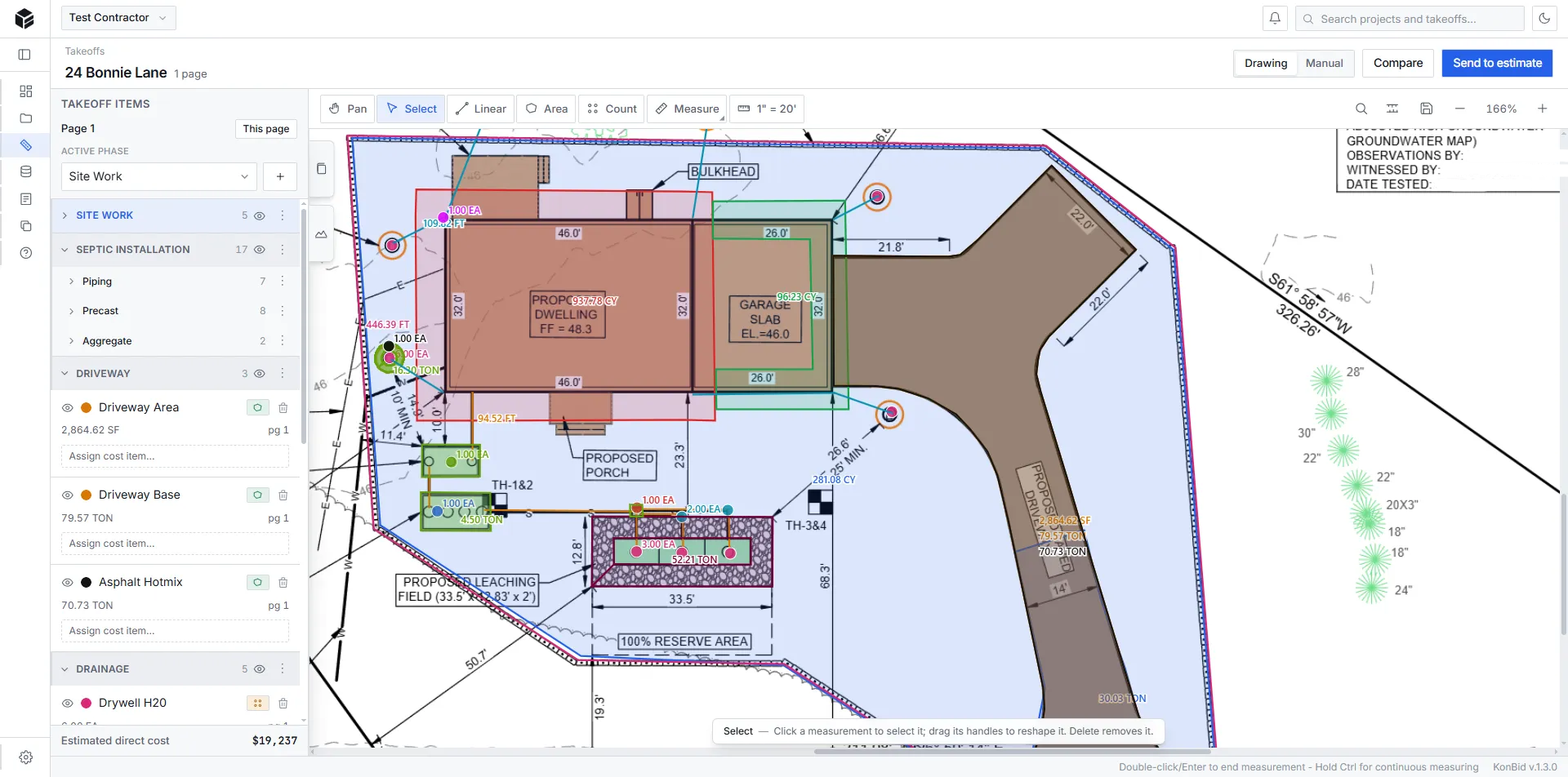
A construction takeoff is the process of measuring quantities from construction plans, such as lengths of pipe, areas of paving, volumes of concrete or earth, and counts of structures, so they can be priced in an estimate. A digital takeoff does this on PDF plans with on-screen tools instead of a scale ruler and highlighter.
Every estimate starts with quantities. If the takeoff is wrong, nothing downstream can fix it: the best unit prices in the world will still produce a bad bid if the square footage is off by ten percent. That is why experienced estimators treat the takeoff as its own discipline, with a repeatable process and a check at the end.
Digital takeoff has largely replaced paper because it is faster, easier to revise, and leaves a record of exactly what was measured. The steps below apply whether you use digital takeoff software like KonBid or another tool.
Start by reviewing the full PDF plan set and specifications, identifying which sheets contain your scope, and noting the scale on each sheet. Rename pages so they are easy to find, set up phases or groups for each part of the work, and confirm you have the latest revision before taking a single measurement.
Calibration tells the takeoff software how many real-world feet one unit on the PDF represents. Use the printed scale if the sheet is to scale, then verify it by measuring a known dimension, such as a labeled property line or building length. A calibration error multiplies through every measurement on that page.
PDFs are frequently printed or exported at a different size than the original drawing, which means the stated scale, such as 1 inch = 20 feet, may not match what is on your screen. Always confirm calibration against a dimension you can trust. If a 100-foot property line measures 98 or 104 feet after calibration, recalibrate before you go further.
Calibrate each sheet separately. Detail sheets and site sheets are often drawn at different scales within the same set.
Most quantities fall into four measurement types. Use linear measurements for pipe, curb, and silt fence; areas for paving, slabs, and clearing; volumes for concrete, stone, and earthwork, usually area times depth; and counts for structures, fittings, and fixtures. Name each measurement after the cost item it will be priced with.
| Measurement | Typical unit | Examples |
|---|---|---|
| Linear | LF | Pipe runs, curb, edging, silt fence, footings |
| Area | SF, SY, acres | Paving, slabs, seeding, clearing limits |
| Volume | CY, tons | Concrete, gravel base, stone, cut and fill |
| Count | EA | Manholes, catch basins, tanks, trees, fixtures |
For volumes, measure the area and apply a depth. A 2,700 square foot slab at 4 inches thick is 2,700 × (4 ÷ 12) = 900 cubic feet, or 33.3 cubic yards before waste. For earthwork with changing grades, use a cut and fill calculation instead; see cut and fill calculation explained.
When a run has several segments, measure them as one continuous line rather than as separate pieces, so the total is easier to price and check.
Raw measurements rarely equal what you buy. Apply waste factors for materials like concrete and pavers, convert cubic yards to tons for stone and asphalt using the supplier density, and convert bank volume to loose volume for trucking. Keep these factors in your cost items or assemblies so they apply consistently on every bid.
Before pricing, review every page for missed areas, double-counted items, and quantities that look wrong for the size of the job. Compare totals against a quick rough-order check, such as paving area versus site area, and confirm every scope item in the specifications has a matching quantity in the takeoff list.
A simple habit: read the scope line by line and tick off each item as you find its quantity. Anything left unticked is either excluded, by others, or missed. Color coding measurements by phase on the drawing also makes gaps easy to spot at a glance.
The takeoff is only useful once it is priced. Send each quantity to its matching cost item or assembly in the estimate, where material, labor, and equipment rates turn it into cost. In KonBid, takeoff items send directly to a new or existing estimate, and plan revisions push updated quantities into the same line items.
Copying numbers from a takeoff tool into a spreadsheet is where many errors start: a transposed digit, a missed row, or an old quantity that never got updated after a revision. Keeping the takeoff connected to the estimate removes that step entirely. Learn how the construction estimating software prices quantities with your own cost database, assemblies, and crews.
Specific trades have their own takeoff habits. See how it works for sitework, concrete, and utility contractors.
FAQ
Quick answers on do a construction takeoff from pdf plans. KonBid handles this workflow from takeoff to proposal for a flat $79 per month for your whole company, with a 14-day free trial that includes every feature and requires no credit card to start.
It depends on plan size and scope. A residential driveway or septic system can take minutes, while a full commercial site package can take several hours. Digital takeoff tools, organized phases, and saved assemblies shorten it significantly.
A takeoff measures quantities from the plans. An estimate prices those quantities with material, labor, equipment, and markup to produce a bid price. The takeoff feeds the estimate.
Yes, calibrate each sheet you measure. Plan sets often mix scales between site, detail, and section sheets, and PDFs may not print at their stated scale.
Yes. Field measurements such as lengths, widths, and areas from a site visit can be entered as a manual takeoff and priced the same way as plan measurements.
14-day trial · No credit card
KonBid is a flat $79 per month for your whole company, with no per-seat fees and no sales call. Start a 14-day free trial with full access to digital takeoffs, the custom cost database, assemblies, and proposal exports, then build your first real bid in minutes.